s12boss&QR code Ordering restaurant
S12.5 restaurant how to use QR Code Ordering :
boss's phone:
Use boss's phohe to search for s12boss on WeChat mini program
or log in https://www.s12boss.com
Select the catering icon and click on 'Register'windows Computer software:
Start the Print Server service on the S12.5 catering software,
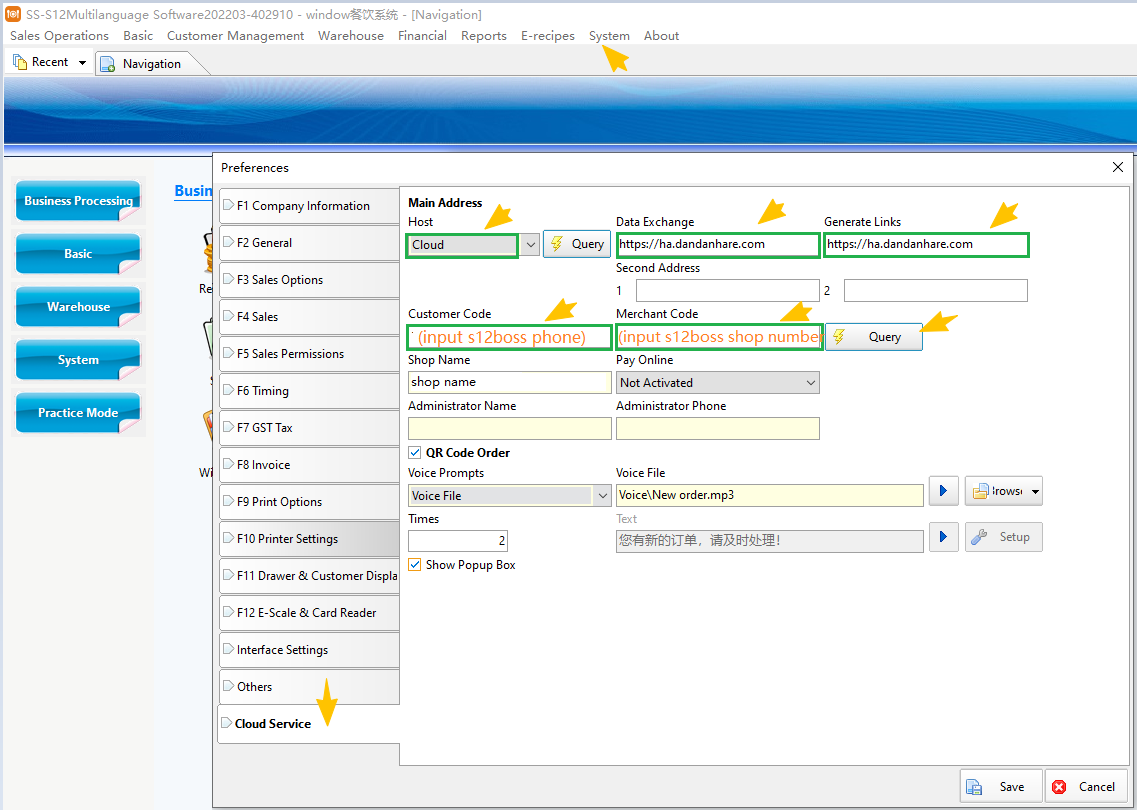
Enter S12.5 Catering Rear Desk - [Parameter Settings] - [Cloud Services]
Data exchange filling in: https://ha.dandanhare.com
Generate link and fill in: https://ha.dandanhare.com
Fill in the customer number with the mobile phone number of s12boss
Fill in the merchant number with the store number of s12boss
Click on 'Search' and the store name of s12boss will appear below, indicating a successful cloud connection
Enter the windows S12.5 catering software - click on "Basic Information" - click on "Table Settings" - select the category of the left table - click on "QR Code Ordering" to generate the corresponding ordering QR code for the table.
If the table and dish information are not refreshed in a timely manner when scanning the QR code for ordering, you can enter the printer server - [Settings] - [QR Code Ordering] - [Re upload]
PREVIOUS:S12.5POS
NEXT:
CATEGORIES
CONTACT US
Contact: +0086 13826107520
Phone: 13826107520
Tel: 020-38023010
Email: 13826107520@139.com
Add: C803, Buynowway Science and Technology Building, 596 Tianhe Road, Tianhe District, Guangzhou,China
 252412228
 shopspeed
 85294218271